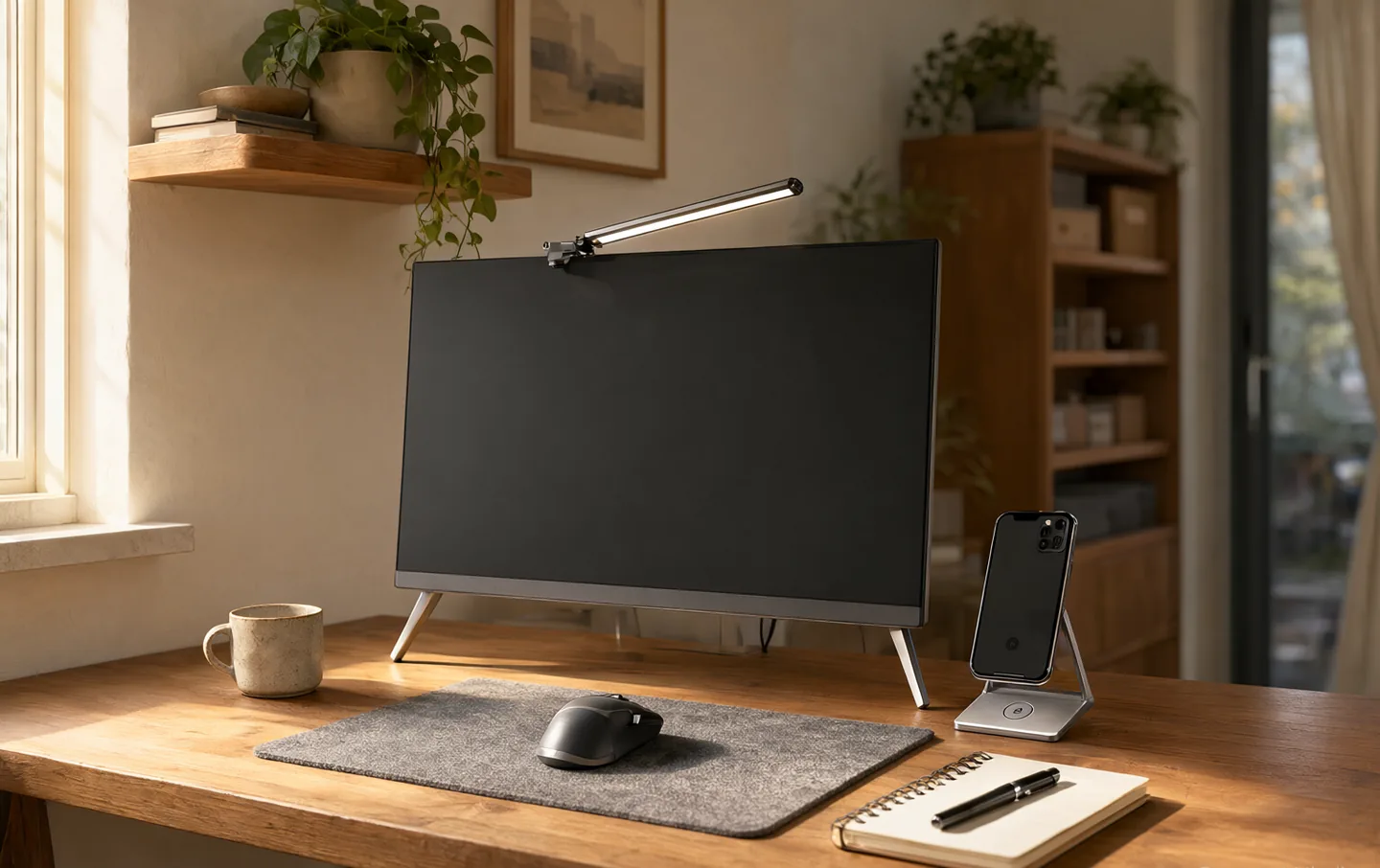
A new monitor is the most visible desk upgrade and often the least useful. Most people already have a screen that is fine. What makes a desk tiring is the small friction: a lamp that glares, a mouse that fits badly, a charger that has taken over the power strip, a laptop that sits too low, a surface that feels like a conference table.
None of these purchases is exciting. All of them are noticeable every day. We looked for a clear job, a fair price, and a downside you can live with.
The quick version#
The BenQ ScreenBar Pro fixes bad evening light without giving up desk space. The Logitech MX Master 4 is the mouse to buy if you want your hand to stop complaining. The Anker Prime charging station replaces a nest of adapters with one box. The Rain Design mStand puts the laptop screen where your neck wants it. And an Orbitkey Desk Mat makes the whole surface feel less like office furniture.
The short list#
BenQ ScreenBar Pro
Best for evening work, small rooms, and desks with no lamp space
A monitor light bar solves a specific problem: you want light on your keyboard and papers, not in your eyes or reflected in the screen. The ScreenBar Pro sits on top of the monitor and throws a wide, even pool of light downward. It is the difference between working comfortably at 9pm and squinting until you give up.
The auto-dimming is genuinely useful, and the motion sensor means it comes on when you sit down. The color temperature adjustment helps in the evening, when a cool white light feels like a fluorescent office. The clip is sturdy, but it needs a monitor with a reasonably thin bezel and a flat top.
It does not replace a room lamp. If your desk faces a window with bad glare, fix the room first. This is a task light, not a renovation.
What works
- Lights the desk without glaring on the screen
- Auto-dimming and a motion sensor
- Frees the desk surface completely
- Adjustable color temperature
What doesn't
- Expensive for a light
- Clip fit depends on monitor thickness
- Lights the desk, not the room
- Cable still has to go somewhere
Logitech MX Master 4
Best for long workdays, spreadsheets, and multi-device desks
The MX Master has been the default recommendation for desk work for years because the shape does most of the work. Your hand rests on it rather than gripping it, and the thumb shelf takes pressure off the wrist. The fourth generation adds haptic feedback and a customizable actions ring under the thumb.
The scroll wheel is still the best part. It moves smoothly through long documents and can free-spin through a spreadsheet with a flick. The mouse pairs with three devices and switches with a button on the bottom, useful with a work and personal laptop on one desk.
It is not a gaming mouse. It is heavy, and the sensor is precise rather than fast. If your hands are small, try one before buying; the size is the most common reason people return it.
What works
- Shaped for a relaxed hand
- Quiet, precise scrolling
- Haptic feedback and an actions ring
- Switches between three devices
What doesn't
- Large for small hands
- Heavy for fast games
- Extra buttons need software
- You may never use the gestures
Anker Prime Charging Station (6-Port, 250W)
Best for a laptop, phone, tablet, and headphones on one desk
This is a small box that replaces a row of chargers. Four USB-C ports and two USB-A ports share 250W, with one port able to deliver enough for a large laptop. The screen shows what each device is drawing, which is useful when a cable is the problem.
It is not a power strip. There are no AC outlets, so a monitor, lamp, or printer still needs somewhere else to plug in. The box is also heavier than it looks, and it takes up a corner of the desk.
For a laptop, a phone, and a couple of accessories, it is the cleanest solution here. For one phone and one laptop, a two-port charger is smaller and cheaper.
What works
- Four USB-C and two USB-A ports
- Up to 140W from one USB-C port
- Screen shows charging status
- One plug instead of a power strip
What doesn't
- No AC outlets
- Large compared with a single charger
- Overkill if you charge one device
- Cables still need managing
Rain Design mStand
Best for laptop workers with an external keyboard
The mStand is a bent piece of aluminum that lifts a laptop screen to roughly eye level. That is the whole idea, and it works. The stand is stable, the lip holds the laptop securely, and the cable hole routes the charger out of sight.
The catch is that a raised screen demands an external keyboard and mouse. Without them, you have moved the strain from your neck to your wrists. If you already work at a desk with a keyboard, this is one of the cheapest meaningful improvements you can make.
It has one angle. If you are particular about screen height, a stand with an adjustable arm is a better fit. The mStand is for people who want a simple object that does one thing well.
What works
- Raises the screen to eye level
- Rigid aluminum, no wobble
- Cable hole keeps the desk tidy
- Works with most laptops
What doesn't
- Single fixed angle
- No height adjustment
- Takes up desk depth
- Not useful without an external keyboard
Orbitkey Desk Mat
Best for making a shared or rented desk feel like yours
A desk mat is the simplest way to change how a desk feels. The Orbitkey has a smooth surface that is pleasant under a keyboard and a mouse, and a magnetic rail along the back that holds charging cables where you left them. The top layer lifts up, which is a surprisingly useful place to stash receipts, notes, or a thin notebook.
It is not a gaming mouse pad; the surface is firm and quick, and some people prefer a softer cloth pad. The vegan leather is easy to wipe but can mark if you leave something wet on it.
Measure your desk before ordering. A mat that is too small looks like a placemat; one that is too large hangs over the edge. The point is to define the work area, not cover the furniture.
What works
- Magnetic rail keeps cables in place
- Top layer lifts to hide papers
- Smooth, quiet mouse surface
- Protects the desk underneath
What doesn't
- Expensive for a mat
- Vegan leather needs care
- Only comes in a few sizes
- Not as soft as felt
Buy one, live with it for a week#
Desk upgrades fail when several arrive at once and none gets adjusted properly. A light bar needs its angle set, a mouse needs its buttons mapped, a stand needs its height checked against your chair.
Buy one thing, use it for a week, then decide what is still annoying. The next purchase will be more obvious.
Check the geometry first. Measure the desk depth, your eye-to-screen distance, and the monitor's thickness. A light bar that does not fit, or a stand that pushes the laptop too far back, will be returned.
Match the charger to the laptop. A 100W station is enough for a 13-inch laptop, a phone, and headphones. A 250W station is for a large laptop plus several devices.
Do not buy a stand without an external keyboard. The point is to raise the screen, not to type on a slope. If you are not ready for a separate keyboard, start with the light or the mat instead.
Questions people actually ask#
Is a monitor light bar worth it?#
If you work after dark, share a room, or fight glare from an overhead light, yes. It puts light where you need it and keeps it off the screen. If your room is already evenly lit and you do not work at night, it is a luxury rather than a fix.
Do I need a 250W charging station?#
Only if you are charging a large laptop and several other devices at once. A 100W station handles a 13-inch laptop, a phone, and earbuds comfortably.
Will a laptop stand help my neck?#
Only if you also use an external keyboard and mouse. Raising the laptop alone moves the problem to your shoulders and wrists. With the right setup, it is one of the most effective changes for a long workday.
The best desk upgrades are the ones that remove a small annoyance you had stopped noticing. Start with the annoyance, not the product.